MCP Server
Connect an AI agent to your databases — reads run free, writes need your approval
MCP Server
data-peek can expose your database connections to AI agents over the Model Context Protocol — Claude Code, Claude Desktop, or any MCP client. The agent can read your schema and run queries, but it can never write to your database without your explicit approval.
It’s off by default, bound to 127.0.0.1 only, and secured with a bearer token.
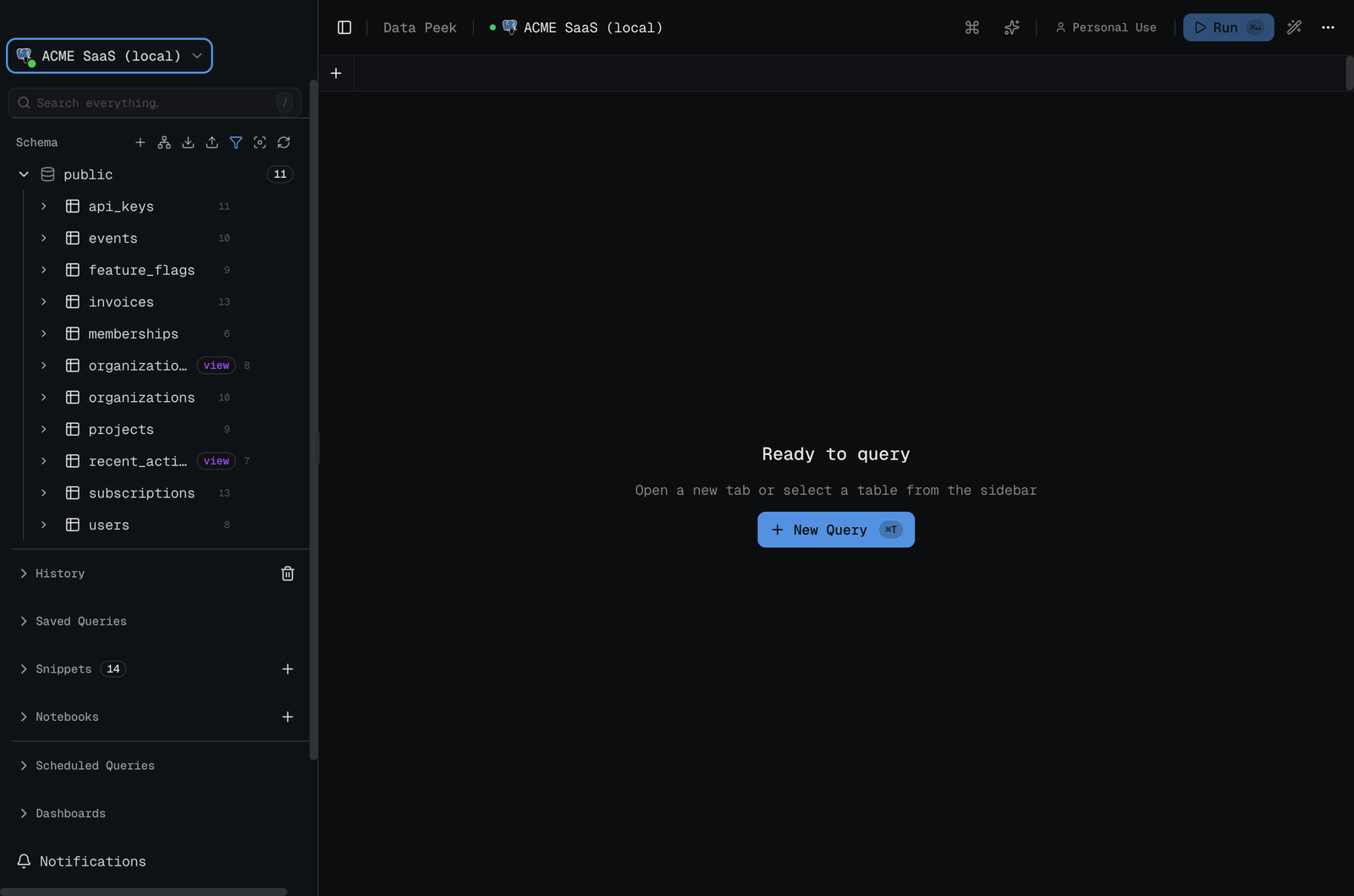
Here’s the whole flow in under 20 seconds — connect, enable the server, and approve a write from an agent:
What the agent gets
Once connected, the agent has five tools. The four read tools run freely, read-only and row-capped. The one write tool can’t touch your data until you approve it in the app.
| Tool | Access | What it does |
|---|---|---|
list_connections | read-only | Lists your saved connections (no credentials) |
list_schemas | read-only | Returns schemas, tables, and columns |
run_query | read-only | Runs a single read-only statement, capped at 500 rows |
explain_query | read-only | Returns the query plan (EXPLAIN, no ANALYZE) |
execute_statement | needs approval | Runs a write/DDL statement — only after you approve |
Connect in three steps
1. Enable the MCP server
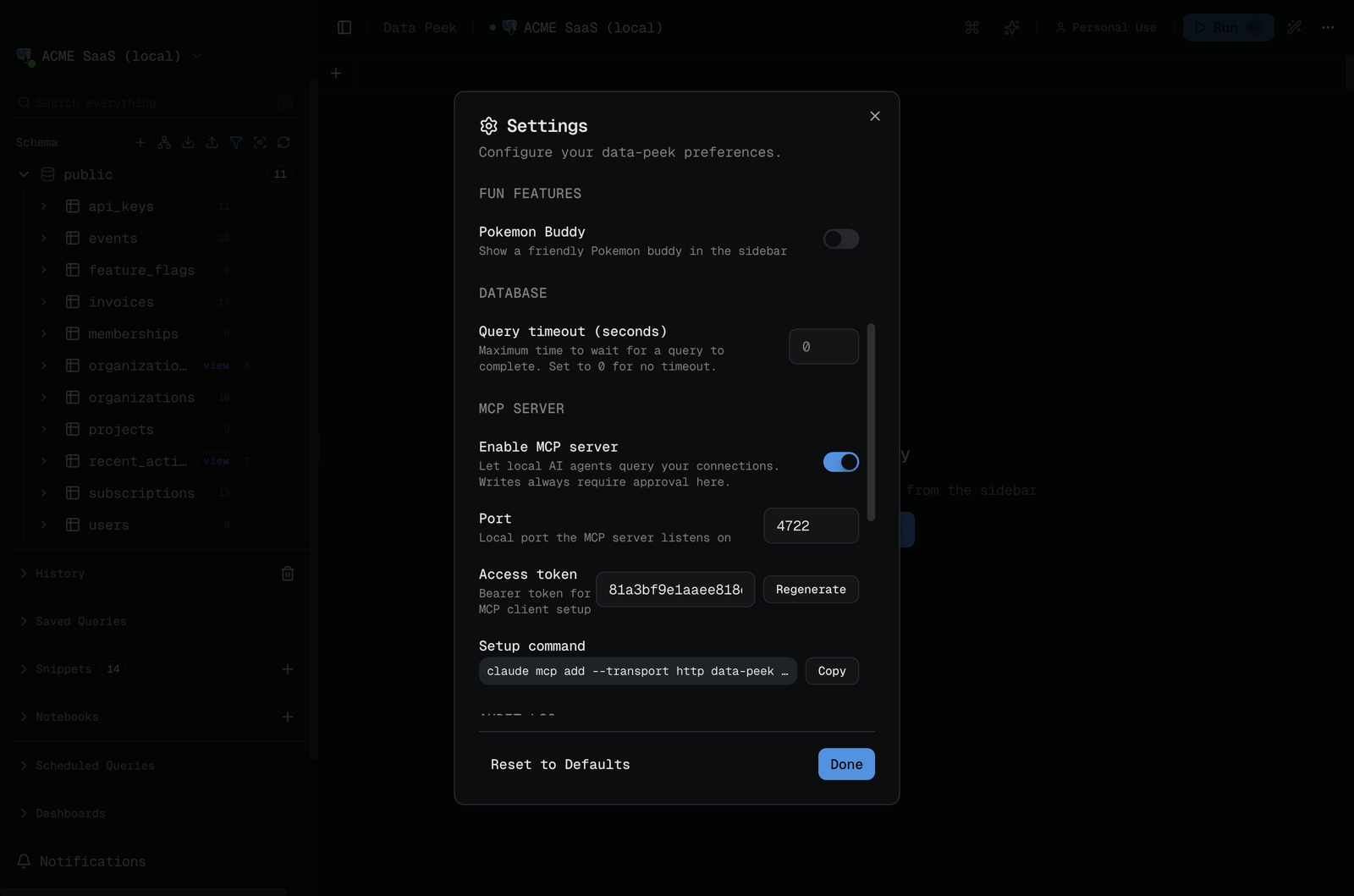
Open Settings (Ctrl ,, or the gear in the sidebar), scroll to MCP server, and flip the toggle. It starts a local server on 127.0.0.1:4722 (the port is configurable) and generates a bearer token.
2. Copy the setup command
Right below the token, data-peek generates a ready-made claude mcp add command with your URL and token filled in. Click Copy:
claude mcp add --transport http data-peek \
  http://127.0.0.1:4722/mcp \
  --header "Authorization: Bearer <your-token>"
3. Add it to your agent
Paste the command into your terminal to register data-peek with Claude Code. Any MCP client works — point it at the same URL with the Authorization: Bearer header. Restart your client (or run /mcp in Claude Code) and you’ll see data-peek with its five tools available.
Ask your agent
Now just ask questions. The agent calls list_connections, then run_query, and reads always run read-only. Every tool returns JSON, which your client typically renders as a table. Credentials are never included:
// list_connections — no passwords or connection secrets
[
  {
    "id": "acme-demo",
    "name": "ACME SaaS (local)",
    "dbType": "postgresql",
    "host": "localhost",
    "port": 5544,
    "database": "acme_saas"
  }
]
// run_query: SELECT plan, count(*) AS orgs FROM organizations GROUP BY plan
{
"rows": [
{ "plan": "free", "orgs": 2 },
{ "plan": "enterprise", "orgs": 2 },
{ "plan": "starter", "orgs": 2 },
{ "plan": "pro", "orgs": 2 }
],
"rowCount": 4
}Writes wait for you
When the agent wants to write, it can’t — it asks. data-peek shows a dialog with the exact SQL. Nothing runs until you approve; a 60-second timeout auto-rejects.
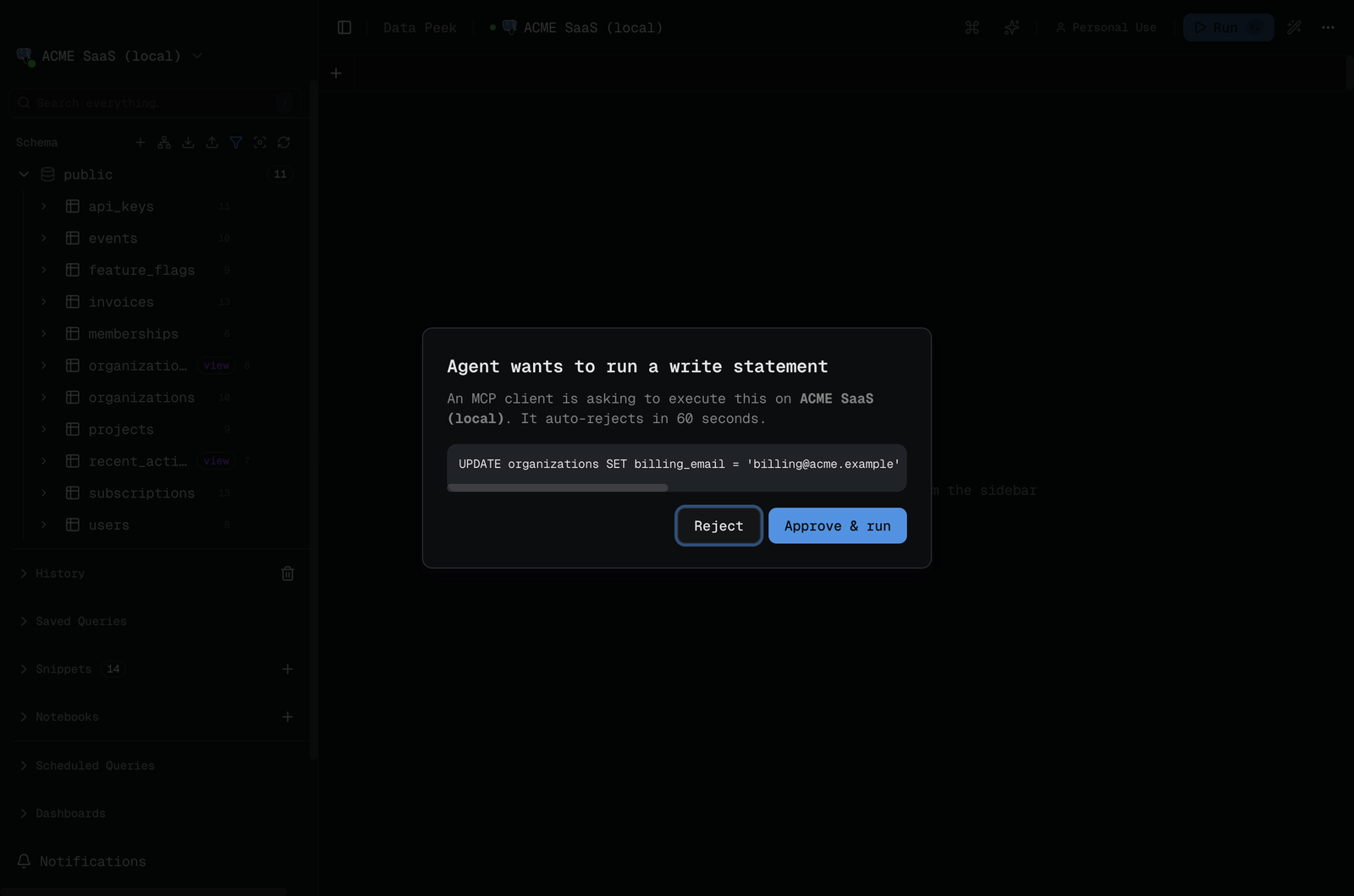
Rejected statements never execute and are never logged — only executed SQL is.
How it stays safe
- Off by default. The server runs only while the toggle is on, and stops the moment you turn it off.
- Localhost + bearer token. Bound to
127.0.0.1only. Every request needs the token; regenerate it any time to revoke existing clients. - Reads can’t mutate.
run_queryruns in a rolled-back transaction (PostgreSQL also runsSET TRANSACTION READ ONLY), capped at 500 rows. ClickHouse has no transactions, so data-peek sends ClickHouse reads with thereadonly = 1setting, and the server refuses writes and table functions such asurl(). - Writes are gated.
execute_statementshows you the exact SQL and blocks until you approve — no silent writes. - Credentials never leave. No connection password is exposed through any tool, and nothing is uploaded.
Audit every call
Pair the MCP server with the Audit Log to keep a tamper-evident, hash-chained record of every statement an agent runs — tagged with the mcp source — that you can verify and export.