AI Assistant
Natural language to SQL queries and intelligent insights
AI Assistant
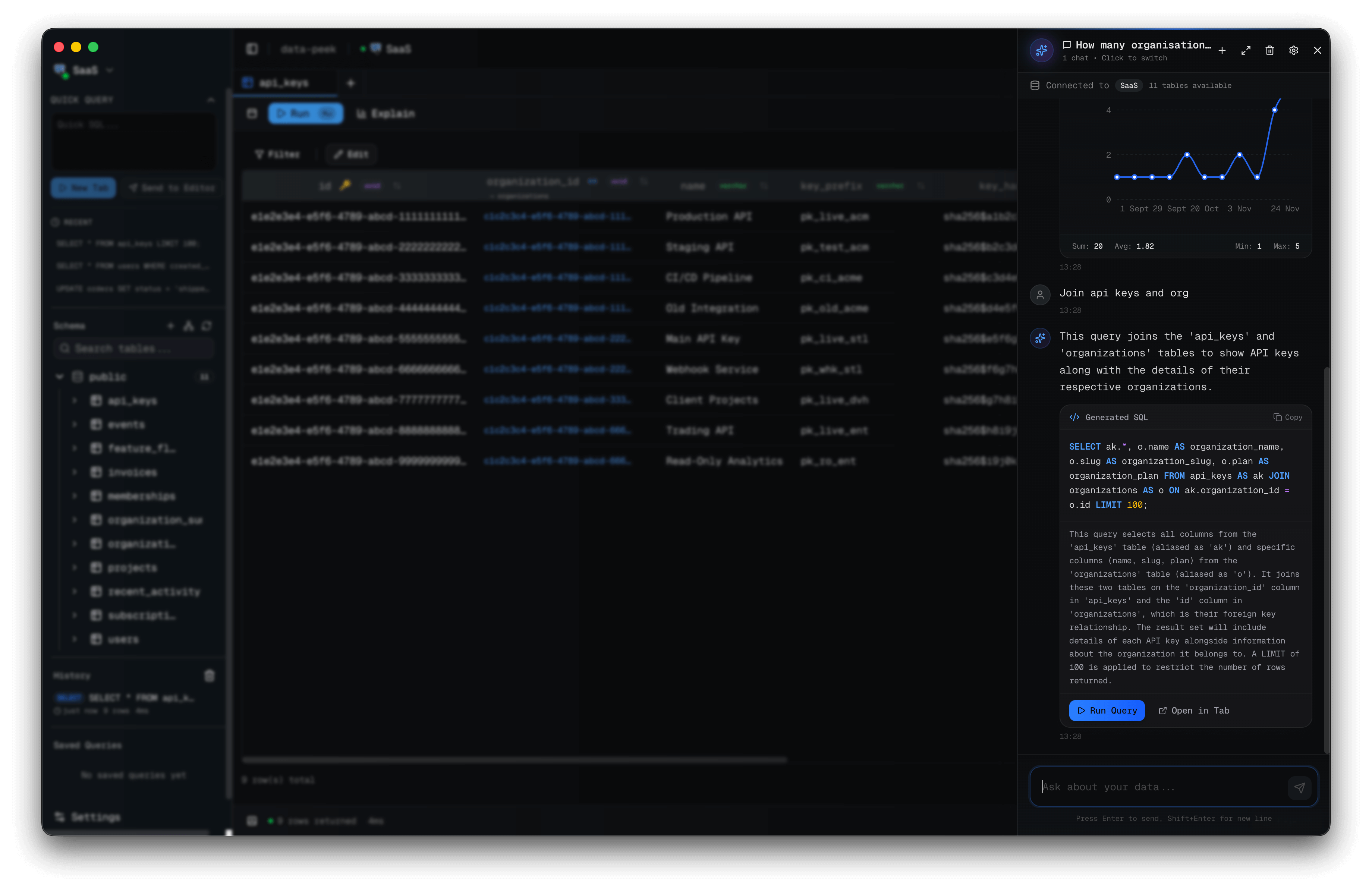
data-peek includes a powerful AI assistant that helps you write SQL queries, generate charts, and get insights from your data.
Getting Started
Open the AI Panel
- Press
Cmd+I(macOS) orCtrl+I(Windows/Linux) - Or click the sparkle icon in the toolbar
- Or use the command palette (
Cmd+K) and search for “AI”
Choose a provider
Open AI Settings (from the AI panel or the command palette) and pick one provider. The app always uses whichever provider is marked Active — you can switch anytime.
- Claude Code (local CLI) — no API key. If you have the
claudeCLI installed and signed in, select the tile and click Use Claude Code. That single click makes it active — nothing else to configure. See Bring your own harness below. - API-key providers (OpenAI, Anthropic, Google, …) — paste your key, click Save … Key, then Set Active. Keys are stored in your OS keychain and only ever sent to that provider.
- Ollama — local models, no key; point it at your Ollama URL and click Use Ollama.
To use only the local Claude CLI, just make Claude Code (local CLI) the active provider — the others can stay configured but unused.
Supported Providers
| Provider | Models (examples) |
|---|---|
| OpenAI | GPT-4o, GPT-4, GPT-3.5 Turbo |
| Anthropic | Claude 3.5 Sonnet, Claude 3 Opus |
Note: Available models may change as providers release updates. Check your provider’s documentation for the latest model offerings.
Bring your own harness (Claude Code)
New in v0.27: instead of pasting an API key, point the assistant at the claude CLI you already have installed. data-peek drives your local Claude Code, on your own login — so there’s nothing to store. And when the MCP server is enabled, the assistant runs grounded: it queries your real database (read-only, always rolled back) to verify its answer before replying.
- Install the Claude Code CLI and sign in (run
claudeonce). - In AI Settings, choose Claude Code (local CLI) — no API key required.
- Enable the MCP server (Settings → MCP) so the assistant can query your database.
- Ask in plain English. The reply streams in live — you see the answer as it’s written, and while it grounds itself you get a running indicator of each step (“Running query…”, “Reading schema…”). Read-only queries run automatically, and grounded answers show a “Grounded against your database” badge.
New in v0.28
The assistant now streams every reply, remembers the conversation across turns, and can build more from a single prompt.
Streaming, grounded answers with memory
Answers stream token-by-token with a live grounding indicator, and follow-up questions (“now just the top 3 of those”) continue the same conversation.
Mini-reports and @ mentions
Ask for an overview and get an inline mini-dashboard — KPIs, charts, and a table — from a single prompt, each widget backed by a verified read-only query. Type @ in the composer to autocomplete real tables and columns.
“Give me a business overview: key totals plus a couple of charts”
More
- Follow-up chips — the assistant suggests your next question; click one to ask it.
- Pin from chat — save a generated query, or add it to a dashboard or notebook cell, straight from the answer.
Features
Natural Language to SQL
Ask questions in plain English and get SQL queries:
“Show me all users who signed up in the last 30 days”
The AI generates:
SELECT * FROM users
WHERE created_at >= NOW() - INTERVAL '30 days'
ORDER BY created_at DESC;
Schema-Aware Queries
The AI assistant understands your database schema. It knows your:
- Table names and structures
- Column names and types
- Relationships between tables
This means you can ask questions naturally:
“How many orders does each customer have?”
Chart Generation
Generate visualizations directly from your queries:
“Show me a bar chart of monthly revenue for 2024”
The AI will:
- Generate the appropriate SQL query
- Execute it against your database
- Create an interactive chart
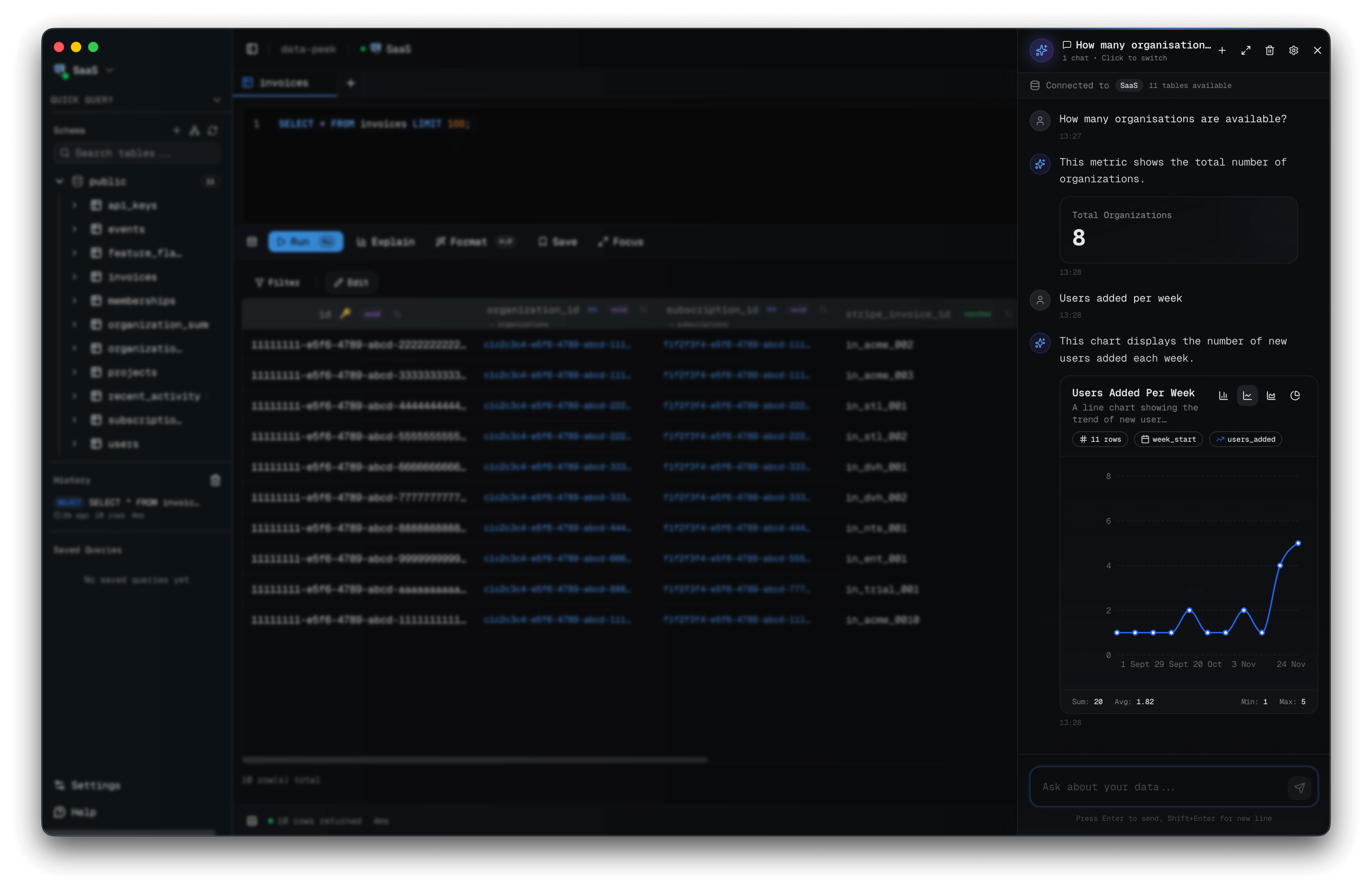
Supported chart types:
- Bar charts
- Line charts
- Pie charts
- Area charts
Query Explanations
Get explanations for complex queries:
“Explain what this query does”
Paste any SQL and the AI will break down:
- What each part does
- How the joins work
- What the result will look like
Safety Guardrails
The AI assistant includes safety features:
- Destructive query warnings: DELETE, DROP, TRUNCATE queries show a confirmation dialog
- Read-only by default: Queries are analyzed before execution
- Schema access only: The AI can see schema structure but not your actual data
Usage Tips
Be Specific
More specific questions get better results:
| Less specific | More specific |
|---|---|
| ”Show me users" | "Show me the top 10 users by order count" |
| "Get orders" | "Get orders from the last week with total > $100” |
Reference Tables by Name
When your question could apply to multiple tables, be explicit:
“Show me the status distribution of the orders table”
Iterate on Results
You can refine queries in conversation:
- “Show me all products”
- “Filter to only in-stock items”
- “Add the category name from the categories table”
Keyboard Shortcuts
| Action | macOS | Windows/Linux |
|---|---|---|
| Open AI panel | Cmd+I | Ctrl+I |
| Send message | Enter | Enter |
| New line in message | Shift+Enter | Shift+Enter |
Privacy & Security
- BYOK model: You use your own API key, so queries go directly to your chosen provider
- Schema context: Only schema metadata (table/column names and types) is sent to the AI, not your actual data
- Local storage: Conversation history is stored locally on your device
- No telemetry: data-peek doesn’t collect or transmit your queries or results
- Provider errors: Error messages returned by AI providers are generated by those providers and may include contextual information about your request